Scanning a drive for books
If your books already exist as files, do not add them one at a time. The drive scanner walks whole folders, finds every book file and adds them all in one pass — and it keeps working afterwards, noticing new arrivals and files that have disappeared.
- Choose (Ctrl+Q).
- If a phone, tablet or e-reader is plugged in, pick it from the list of devices. Otherwise choose the disk or folder to look in.
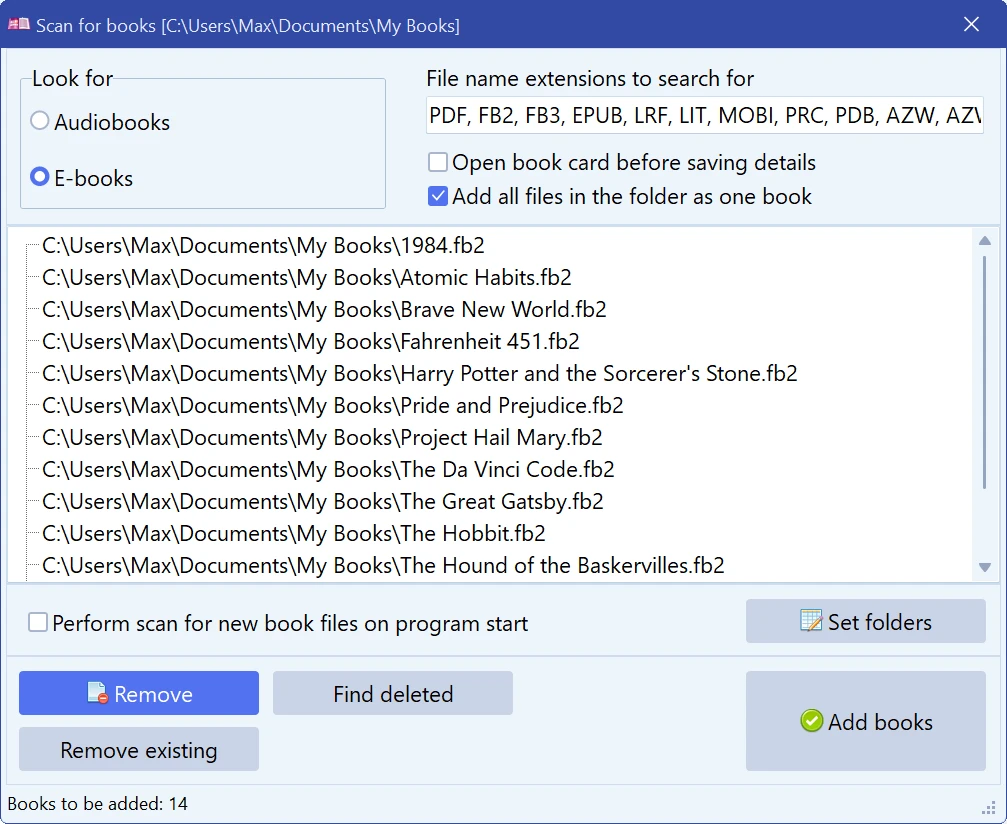
- The scan window opens and starts searching straight away. Under Look for choose E-books or Audiobooks — that switches the list of extensions. You can edit File name extensions to search for by hand and press Enter to search again.
- Trim the list of what was found: Remove drops the selected entries, Remove existing drops everything that is already catalogued.
- Click Add books.
Options worth knowing
| Add all files in the folder as one book | For multi-part books — especially audiobooks. Each folder becomes one entry with all its files attached instead of one entry per track. |
| Open book card before saving details | Shows you every card before it is written. Thorough, but slow on a large batch; leave it off for the first big scan and correct cards afterwards. |
| Perform scan for new book files on program start | All My Books quietly re-scans the same folders each time it starts, so books you download later end up in the collection without you doing anything. |
| Set folders | The list of folders that the startup scan looks through. Changing it also restarts the search. |
| Find deleted | Lists entries in the collection whose files are no longer on disk — the usual result of tidying up folders outside the program. |
| Remove existing | Drops from the found list everything that is already catalogued, so you only look at what is genuinely new. |
| Ungroup folder | Splits a folder that was grouped as one book back into separate entries. |
Details are read from the files themselves where the format allows it — FB2, FB3, EPUB, MOBI, LRF and audio tags all carry title, author and often a cover; PDF gives title, author, page count and its first page as the cover. What each format gives is listed in Adding an e-book.
Possible duplicates
If Check for duplicate titles when adding a new book is on in Preferences, a file whose title is already in the collection stops the run with a question. Besides Yes and No it has Yes to All and No to All: the answer is then applied to every other possible duplicate of this scan, and the rest of the batch goes through without asking.
Scan first, then run Batch updating book details with Unfilled only over the result to pull covers, synopses and ratings from an online source. A folder of files turns into a real catalog in two steps.
Scanning is a bulk operation: after the trial it needs a licence, whatever the size of the collection. See Trial, free mode and licence.
Free to try. Catalog up to 100 books at no cost, forever.