Finding a book
All My Books has five different ways to get to a book, and they suit different kinds of half-memory.
1. Instant search
The search field above the book list filters as you type. Type “dun” and the list is down to the Dune books before you finish the word. Clear the field to get the whole collection back.
2. Quick filter
The quick filter on the toolbar narrows the collection by the value of one field — subject, year, publisher, location, binding, language, series and so on. Pick a value from the drop-down and only books with that value stay visible.
The button next to the field chooses which field the filter works on. (In older versions this was a right-click; it is a normal button now.)
3. Filters by mark
The menu answers the standing questions in one click:
| Show All | Remove all filtering. |
| Show Wishlist | Books you want but do not have. |
| Show Unread / Show Read | By reading state. |
| Show Loans / Show Overdue | Books that are out, and books that are late. |
| Show Duplicate Titles | Finds accidental double entries. |
| Show New | Added in the last 7, 30 or 60 days. |
| Personal marks | Your own flag fields. |
Hold Shift while choosing a quick filter to invert it. Shift + Show Unread shows the books you have read.
4. Sorting and grouping
orders the list by title, original title, author, date added, book number, rating, personal rating, price, year, pages or date read. Hold Shift as you choose to reverse the direction, or click a column header in the list.
turns the flat list into a tree: by first letter, author, author's last name, translator, editor, illustrator, binding, location, subject, year, publisher, language, series, read date, add date, file type, folder, author-and-series, personal marks or any custom field. Browsing “everything by this author, in series order” is then a matter of opening one branch, and grouping by Folder shows e-books and audiobooks laid out the way they are on the disk.
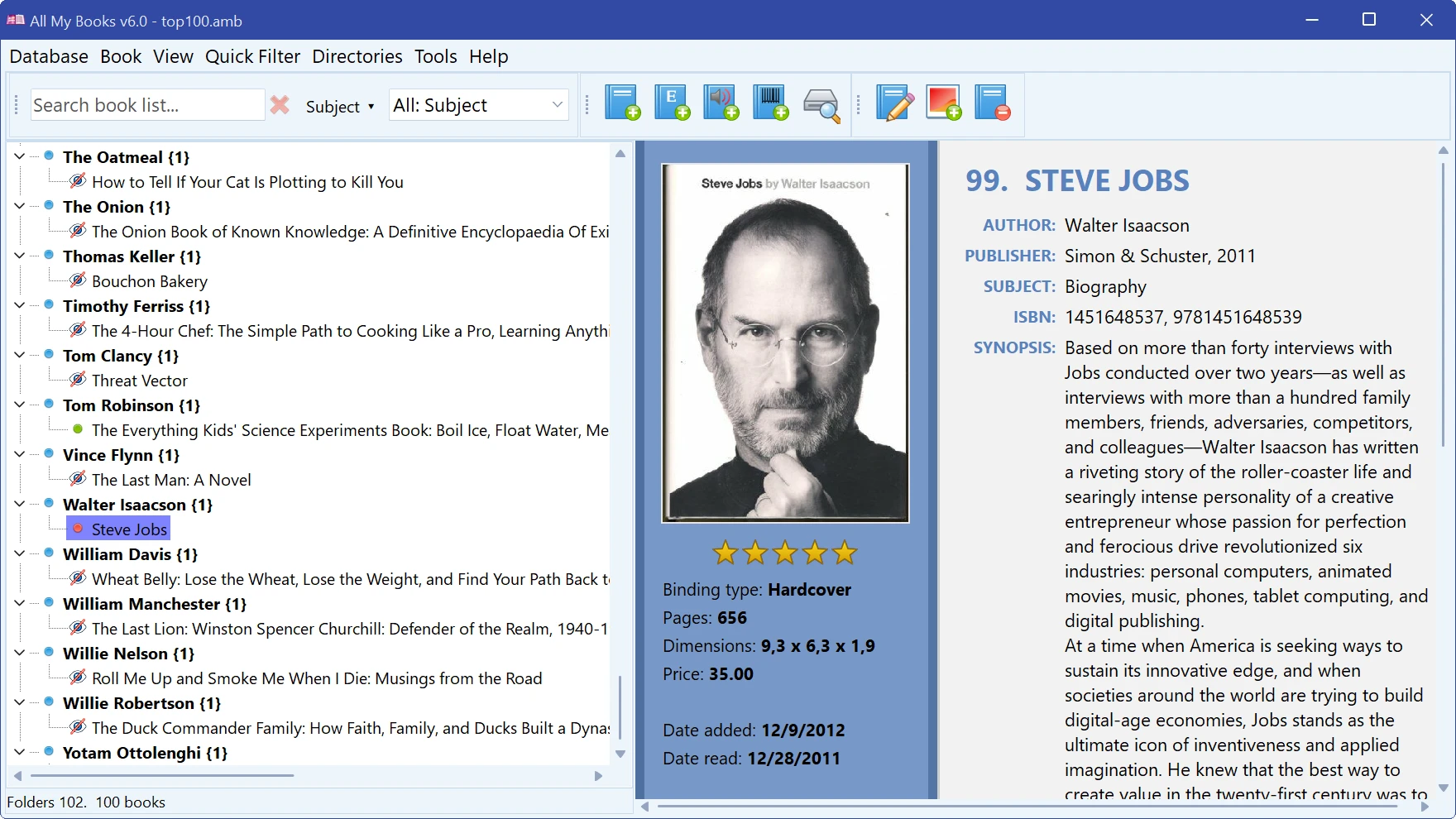
Many values on the book card are links — year, subject, rating, author. Clicking one offers to sort or filter the whole collection by that value, which is the fastest way to get from “this book” to “everything like it”.
5. Advanced search
(F3) is for everything else.
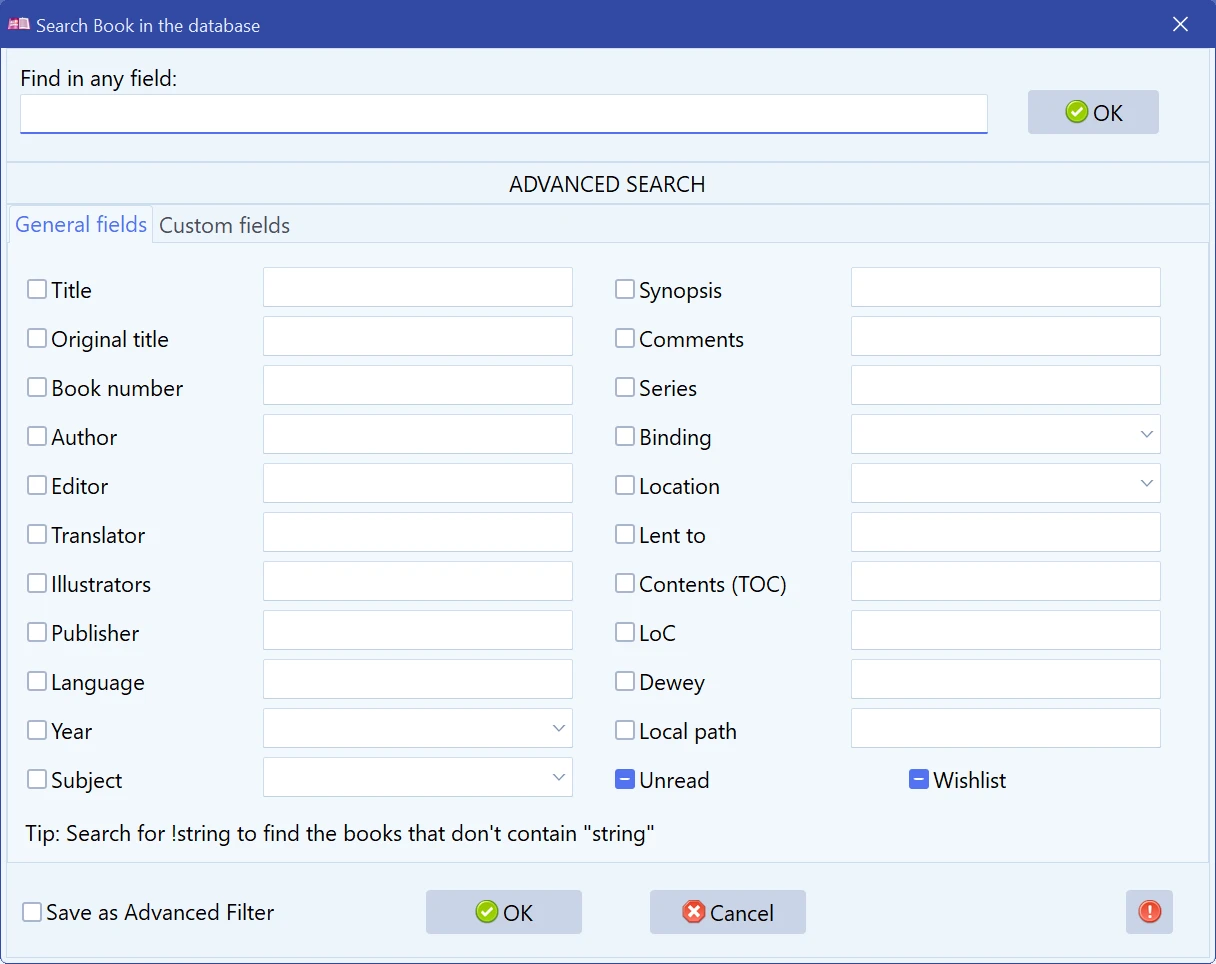
- Find in any field — one box, searched against everything: title, author, synopsis, comments, table of contents, publisher, series and the rest. Use it when you only remember a phrase.
- By field — tick the fields you want and fill them in: title, original title, author, translator, editor, illustrator, publisher, series, year, language, binding, subject, book number, location, local path, synopsis, comments, contents, loaned to, LoC, Dewey, wishlist and unread. Several criteria at once are combined.
- Custom fields have their own tab.
Search tips
A field takes more than a plain word. The hint line at the bottom of the dialog follows the field the cursor is in and reminds you what that particular field understands.
!text | Books that do not contain
that text. Works in every text field and in Find in any
field. A word with ! in front in the Publisher field
lists the books of every other publisher. |
2003-2008 | A range in the Year and Book number fields: everything from 2003 to 2008 inclusive. |
!2005, !2003-2008 | Every year (number) except those. |
Fantasy OR Mystery | In the Subject field: books of either subject. |
Fantasy AND Humor | Books that have both subjects at once. |
Fantasy AND !Horror | Fantasy, but not
horror: ! applies to the subject it stands in front of. |
OR and AND are written in capitals with spaces
around them — that is how the program tells them from ordinary words in a
subject name (“Arts and Crafts”). They can be mixed:
AND binds tighter, so Fantasy AND Humor OR Mystery
means “humorous fantasy, or any mystery”.
If the program cannot read a year or a number (2003-, for
example), the search does not start and the hint line says what is wrong.
Saved filters
A search you keep repeating can be kept. Tick Save as Advanced Filter in the search dialog, give it a name, and it appears under — “unread hardbacks bought this year” is then one click away.
Searching for a specific ISBN in the collection you already have is (F9) — useful in a bookshop for checking whether you already own a copy.
Free to try. Catalog up to 100 books at no cost, forever.