Adding a book by ISBN or barcode
Every modern printed book has its ISBN in the barcode on the back cover. All My Books can read that number — from a barcode scanner, from your webcam, or typed by hand — and build the card from it. This is the fastest way to catalog a shelf of paper books.
- Choose (Ctrl+F1).
- Tick Batch Mode if you are doing more than one book — the list of numbers below only appears in batch mode.
- Get the numbers in:
- Barcode scanner. Most USB scanners behave like a keyboard: point, beep, and the number appears. Nothing to configure.
- Webcam. Click Use webcam and hold the back cover up to the camera. The number is recognised from the picture. The camera needs auto-focus: a fixed-focus camera cannot see a barcode sharp enough at close range. Hover the mouse over the camera picture: the tooltip shows the camera's name and, if the camera reports it, autofocus or no autofocus, scanning may fail.
- By hand. Type it and click Add. Hyphens are optional.
- From the clipboard. Paste takes numbers copied from anywhere else.
- Click Next to look the numbers up.
- Check the card that opens and save it.
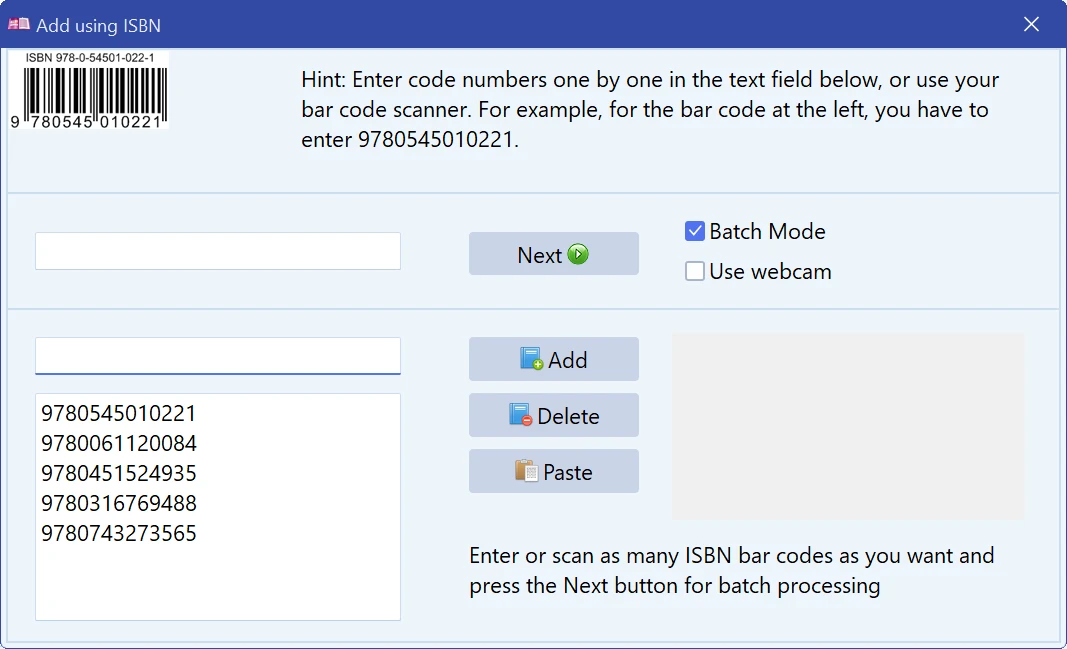
Batch mode
Tick Batch Mode and the numbers are not looked up one by one. Scan a whole stack of books first — the list grows as you go — then start the run and let All My Books query the source for every number in turn. This is the way to do a bookcase in an evening.
Set the default online source to ISBNdb.com before a barcode session: it is organised around ISBNs and answers more of them than the general catalogs. See Setting up preferences.
Kindle books: ASIN
Many Kindle books have no ISBN at all, only an Amazon ASIN — ten
characters starting with B, usually B0…. Type or
paste it into the same field as an ISBN. Only Goodreads.com understands an ASIN,
so make Goodreads.com the default source for such a session
(Setting up preferences); the other sources will not find the
book.
Older books have no ISBN. ISBNs came into general use in the 1970s. For anything older, search by title or author instead — see Adding a book automatically.
You can also look up an ISBN for a book that is already in the collection: open its card and press Enter in the ISBN field. (F9) searches the collection you already have for a number.
Free to try. Catalog up to 100 books at no cost, forever.