Great for cookbooks
"I bought All My Books and so did a friend of mine. We are both in love with it. We are cookbook collectors and keep many "books" in our computers using Mastercook recipe software. We point All My Books at our various files, it then goes and looks online for a match...we add info if that's called for right there on the info grabbed window...and store...and the beauty of that is: the program allows us to also store a link back to the "book" and set it to open that book when we click on the little book icon that the program has."
b adams
All My Books 6.2: Book Spines on the Virtual Shelf

On a real bookcase you rarely see covers. You see spines: a thick hardcover next to a thin paperback, a row of matching volumes, a red spine you recognize from across the room. Until now the virtual shelf in All My Books could only show books cover-out, like a shop window. Version 6.2 adds the other half: book spines.
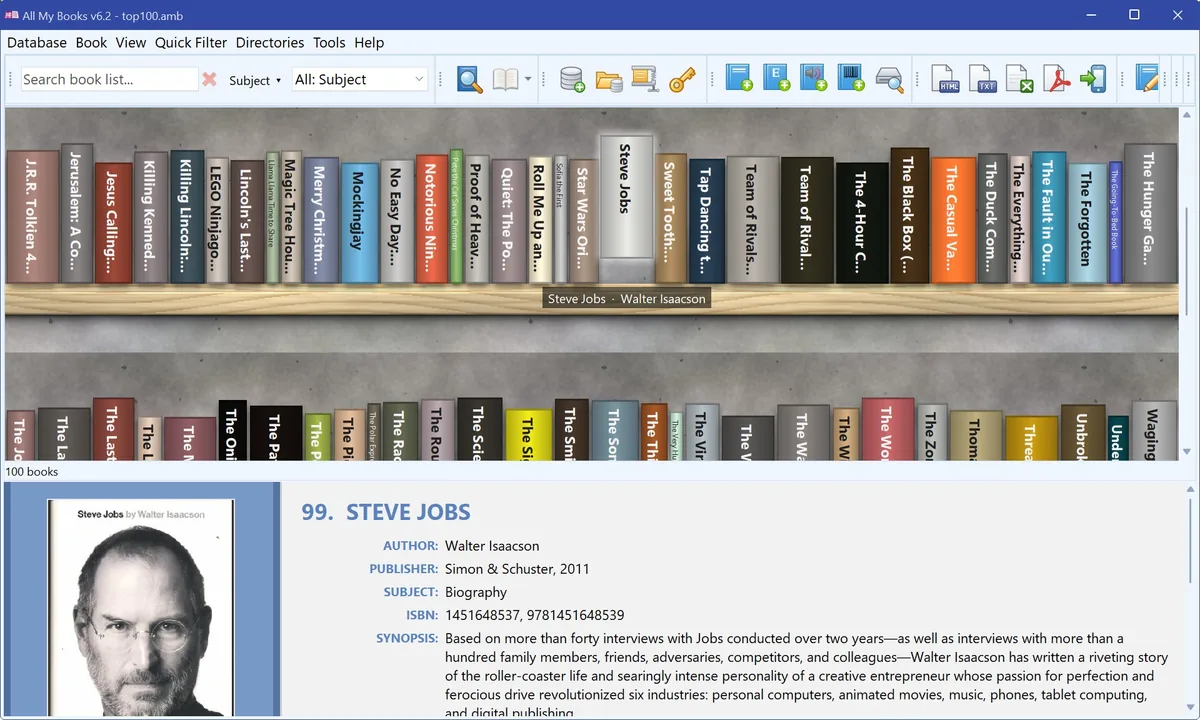
The spines mode is only the most visible part of the update. The whole shelf was rewritten, there are six new backgrounds, a new default cover, grouping by disk folder, and a long list of fixes. Below is what changed and how to use it. If you do not have the program yet, All My Books is a home library catalog for Windows: paper books, ebooks and audiobooks in one database.
How to turn on book spines
- Menu: View → Virtual shelf and pick a background. The book list switches to the shelf.
- In the same submenu, below the backgrounds, check Book spines. Uncheck it to go back to covers.
The program remembers the choice. Nothing has to be prepared: spines are drawn on the fly from what is already in your catalog.
Where the spines come from
Nobody photographs book spines, so All My Books builds each one from the data in the book card:
- Thickness follows the page count. A 900-page novel stands out next to a 120-page one. Fill in the Pages field (online search usually does it for you) and the shelf gets realistic.
- Color comes from the cover. The spine takes the color of the cover’s left edge, so the books are as easy to recognize as on a real shelf.
- Height varies a little from book to book, as it does in real life, instead of a row of identical blocks.
- The title is printed along the spine, the way publishers do it in your language: top to bottom in the English interface, bottom to top in Russian and most European languages, and in a column for Chinese and Korean.
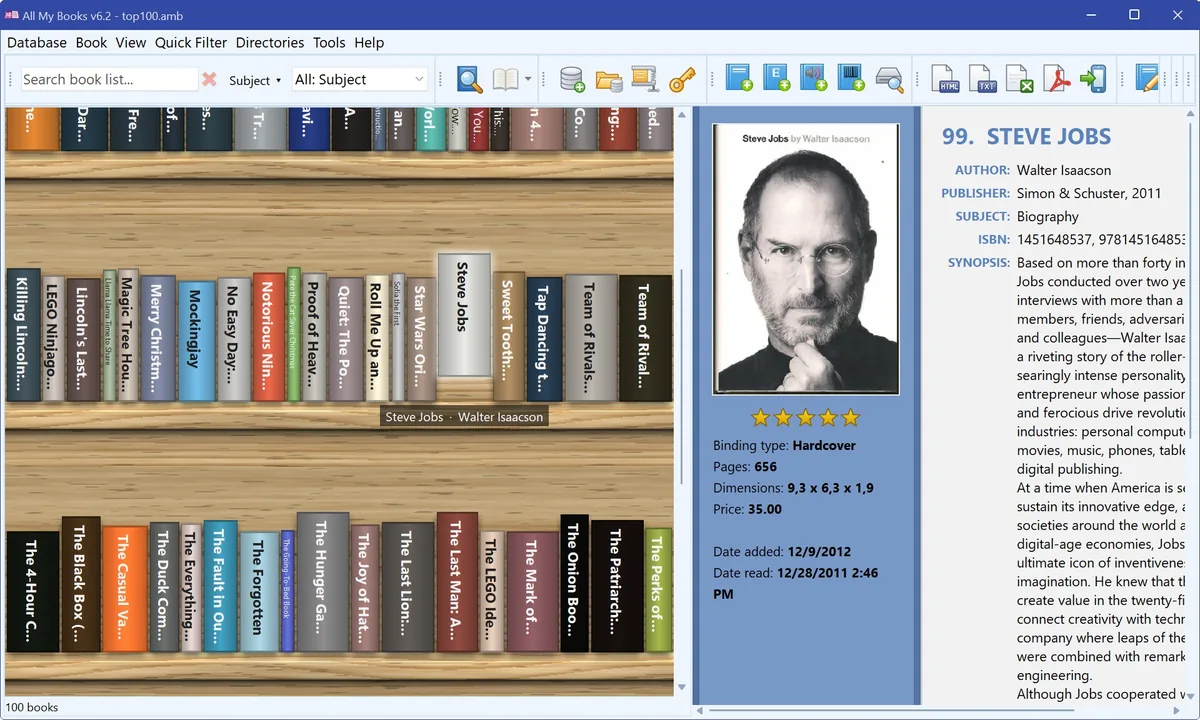
Move the mouse over a spine and it turns to show the cover. Click a book and it slides out of the row a little, with a small plate under it: title and author. The card on the right shows everything else about the book, as usual.
Six new backgrounds and soft shadows
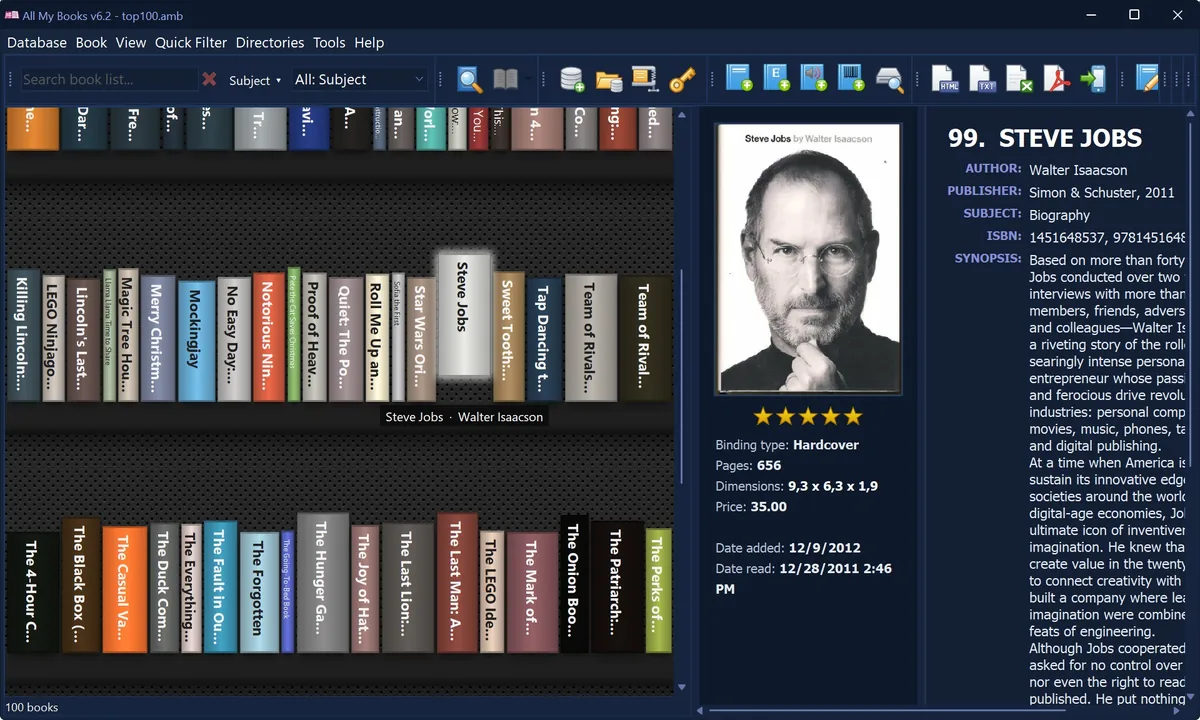
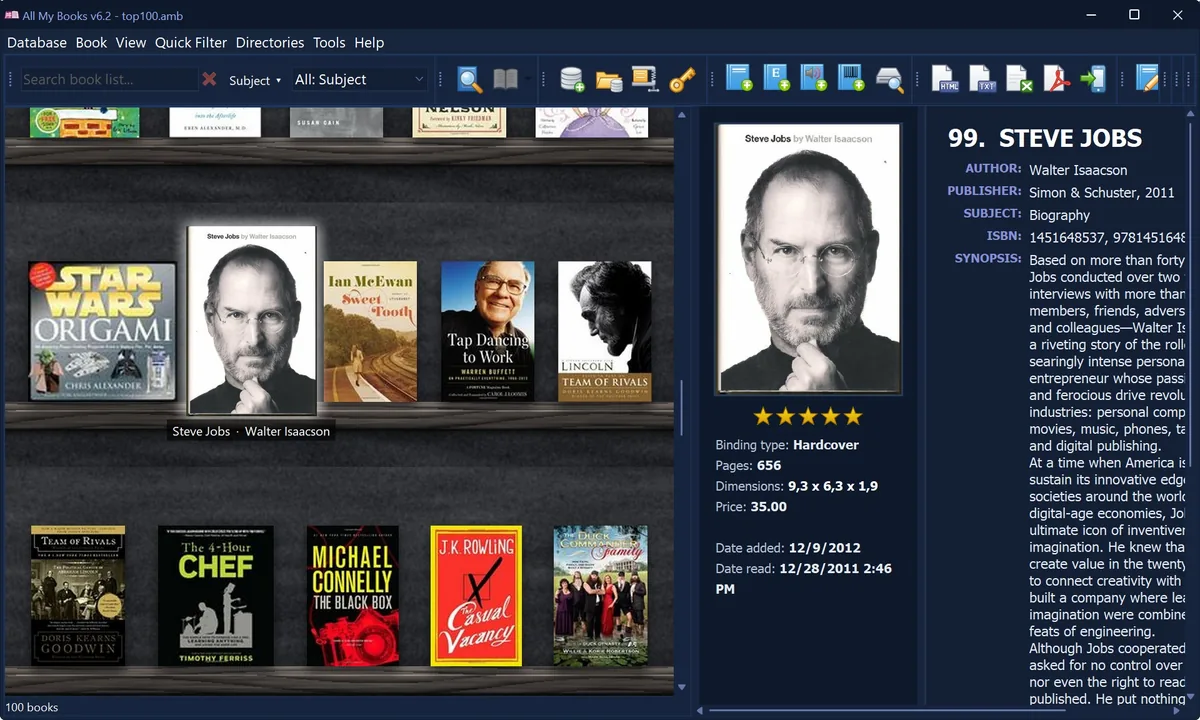
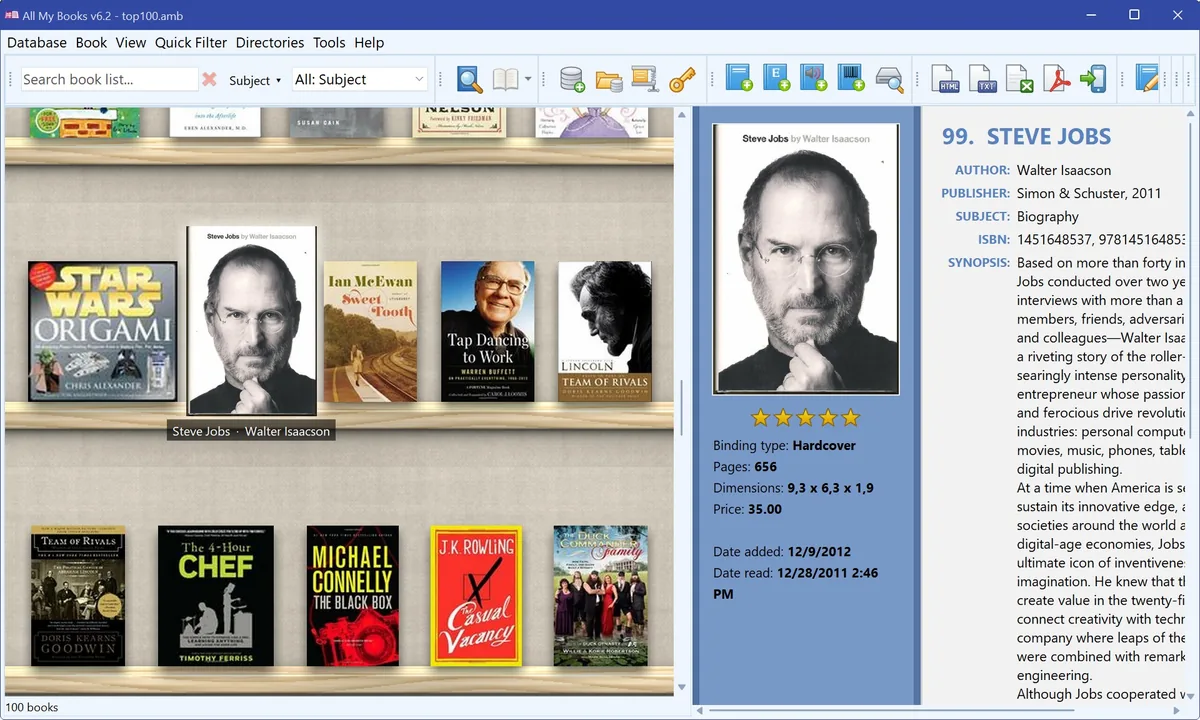
The old shelf backgrounds dated from 2008. Version 6.2 adds six new ones: Oak, Walnut, White, Loft, Graphite and Linen. Books cast soft shadows on the wall and on the board, and the selected book gets a gentle glow. In the dark theme the shelf uses a dark background by default.
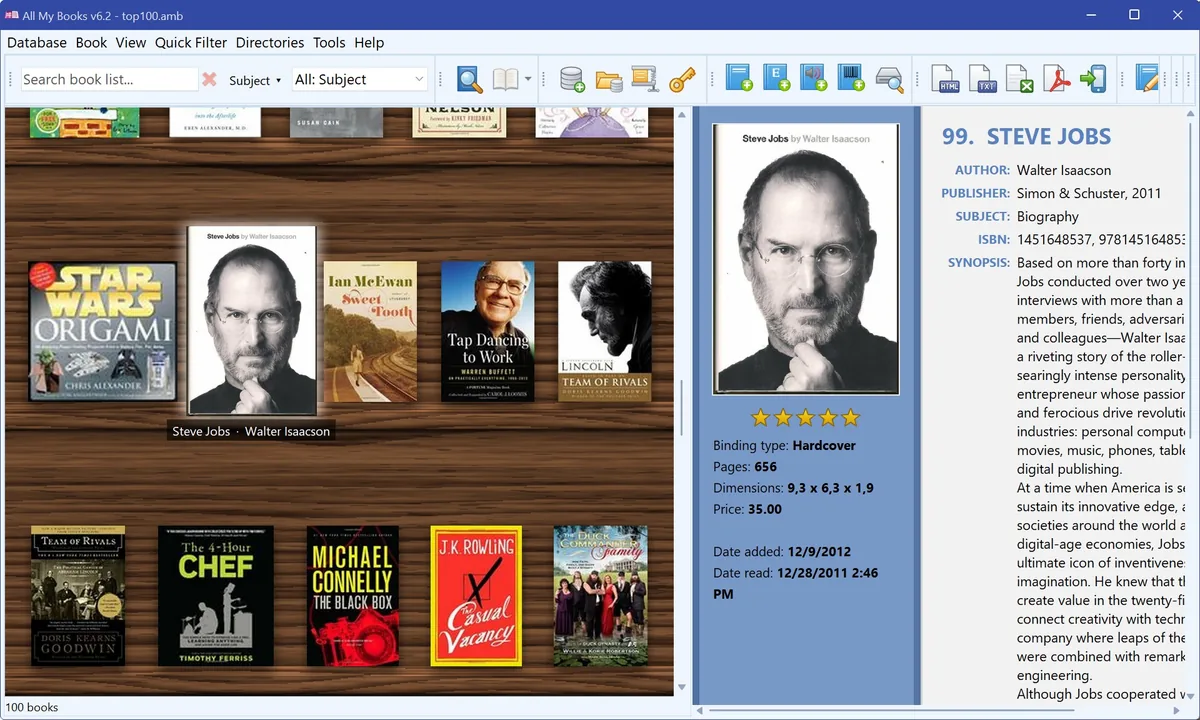
Want your own? Each background is just a folder with two pictures, backg.png (the wall) and shelf.png (the board).
Put such a folder into the shelves folder of the program (next to the ones that come with it) and it appears in the Virtual shelf menu.
The shelf shows more than covers now
- Mark colors. If you color-code books with personal marks (favorite, to re-read, signed copy…), the color shows in the corner of the cover on the shelf, and cover thumbnails are highlighted with it too.
- Lent books are half-transparent, so you can see what is missing from the real shelf without opening the loan history.
- Books without a cover no longer show a blank placeholder. They get a colored cloth binding with the title and author printed on it; the color is picked from the title, so the same book always looks the same.
Fast with thousands of books
The shelf code was rewritten for speed. Only the part of the shelf that actually changed is redrawn, the mouse wheel scrolls one row at a time and stops neatly at the row, and covers load in the background while you scroll. Resizing the window no longer causes white flashes. Rebuilding thumbnails for a big collection is several times faster and shows progress.
What else is new in 6.2
- Group books by disk folder. Ebooks and audiobooks can be grouped by the folders they live in. Empty intermediate folders are collapsed, so the tree stays short.
- A cleaner first start. New users get their own empty library and a start page with ways to add books, instead of a demo collection to delete.
- New list columns: translator, editor, illustrator and your custom fields.
- Authors directory can search in biographies and other details.
- Faster online search: the cover and illustrations download in parallel.
- Greek interface language.
- Progress when deleting many books, smoother scrolling of thumbnails, faster camera start for the barcode scanner, dark theme for the statistics chart.
- Fixes: large imports from Book Collector and from mobile no longer run out of memory, changing settings no longer resets the sort order, and more.
The complete list is on the version history page.
Coming next: share your shelf
Honestly, we liked the new shelf so much that we kept taking screenshots of it ourselves. So the next update adds Share shelf picture: right-click the shelf and copy a picture of it to the clipboard, save it as PNG or JPG, or send it straight to a messenger or e-mail with Share via Windows. The picture shows the rows you are looking at, with a neat caption: how many books are on your shelf. Perfect for a reading club chat, a forum signature, or just showing off a new bookcase.
How to update
Download the installer below and run it over your current version. Then open View → Virtual shelf, try a couple of backgrounds and check Book spines. If the spines all look the same width, fill in the page count for a few books, or update them in batch from an online source.
What our customers say
Book spines, six new shelf backgrounds, mark colors and lent books on the shelf, grouping by disk folder.
All My Books 6.2 for Windows.
All My Books 6.2 for Windows.
Related
- Screenshots
- Version history
- All My Books 6 press release
- How to catalog books
- How to organize ebooks
License Benefits:
- No 100-book limit
- Drive scan, Excel/CSV import and new databases after the first 30 days
- No reminder window, no trial banner
- Free updates and technical support
- The license key works instantly, no reinstall