How to Organize Ebooks on Your Computer
Ebooks pile up fast: Downloads, Kindle exports, old PDFs, folders named to-read, duplicates with slightly different filenames. Sorting that by hand in Explorer does not scale. Here is a practical way to organize ebooks into a searchable catalog — without moving files into a new library folder.
The tool we use below is All My Books for Windows
(product page: ebook manager software).
It catalogs EPUB, PDF, MOBI, AZW, DjVu, FB2 and more, pulls missing details from online databases such as Goodreads, and opens each book in the reader you already prefer.
Folders vs a catalog vs Calibre
Renaming files and making prettier folders helps a little. It does not tell you what you already own, what you have read, or which file is the complete EPUB versus a 2 MB stub.
| Need |
Explorer folders |
Calibre |
All My Books |
| Find a title in seconds |
Filename search only |
Yes, in its library |
Search, filters, groups |
| Keep files where they are |
Yes |
Copies into its own library |
Index only — no copy/rename |
| Covers, series, plot |
No |
Yes |
Online lookup (Goodreads and others) |
| Convert EPUB/MOBI, send to Kindle |
No |
What Calibre is for |
Opens the file in your existing reader; USB copy to a device |
| Paper books + ebooks together |
No |
Ebook-centric |
Same catalog, ISBN, loans, reading log |
Already in Calibre? Import metadata.db instead of scanning from scratch —
Calibre import walkthrough.
What “organized” should mean
A usable ebook collection is more than tidy folders. You want to:
- Find a title in seconds (by author, series, genre, or a word in the notes)
- See covers and plot summaries, not only filenames
- Know what you already own — and what you have already read
- Keep files where they are (NAS, external drive, old archive folders)
That is a home library catalog, not just a folder tree. All My Books builds that catalog for you.
Step 1. Point the program at your ebook folders
Install All My Books, then use Book → Scan for books on disk/device…. Select the folders where your ebooks live. The program reads metadata from the files (title, author, often a cover) and adds cards to your collection.
Important difference from Calibre: All My Books does not copy or rename your files into its own library. Files stay on disk exactly where you left them; the catalog is an index on top.
Step 2. Fill in missing book details
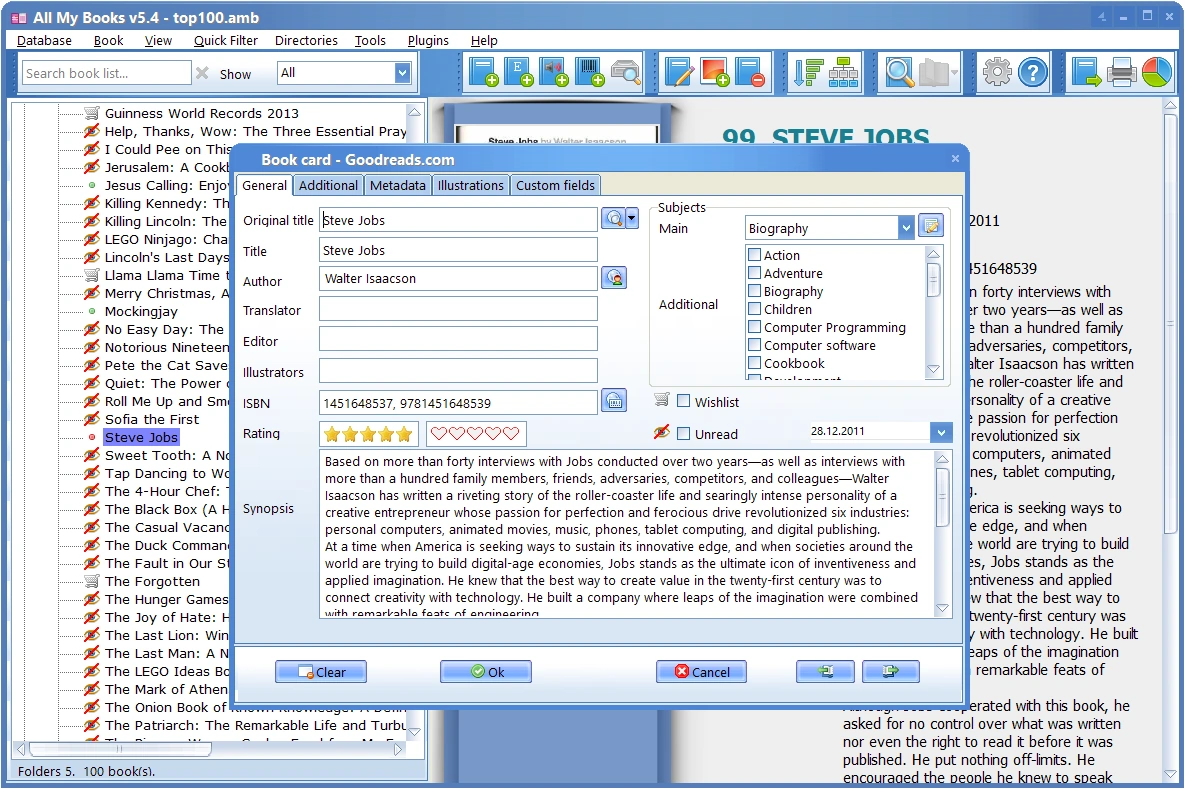
Many files have incomplete tags. Open a book card (double-click) and use the online lookup button next to the title field. All My Books can fetch cover, description, series and other fields from online book databases — so you are not typing everything by hand.
Step 3. Open books in your favorite reader
All My Books is not an ebook reader. That is intentional: one click opens the file in whatever app Windows already associates with that format (SumatraPDF, Calibre Viewer, Kindle app, and so on). Configure associations in your reader’s settings once, then browse and open from the catalog.
Step 4. Search, filter, and browse like a library
Once the catalog is filled, organize the view the way you think:
- Quick search and filters across a large collection
- Group by author, genre, series, or custom fields
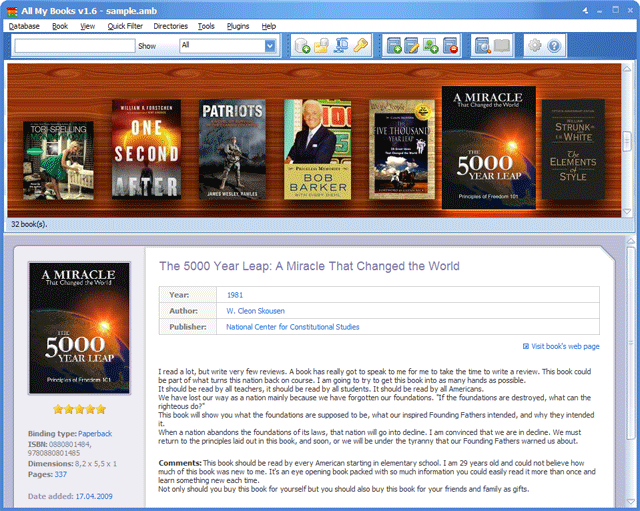
- Virtual shelf mode if you prefer covers over lists
- Reading log — mark books as read and keep notes
- Collection statistics under Tools → Statistics
Supported ebook formats
All My Books works with common ebook and document formats, including:
PDF, DjVu, FB2, FB2.ZIP, EPUB, MOBI, PRC, PDB, LIT, LRF, RB, AZW, AZW2.
Printed books and audiobooks can live in the same catalog if you want one home library for everything.
Quick FAQ
How do I organize thousands of ebooks without renaming every file?
Scan the folders first. The catalog stores title, author and cover separately from the filename. Tidy folders later only if you still want to.
Do I have to reorganize my folders first?
No. Scan first; tidy folders later if you still want to. The catalog works either way.
Can I mix paper books and ebooks?
Yes. Add paper books by title or ISBN the same way, then use one search across both. For a broader walkthrough see how to catalog books.
Is this only for Kindle / EPUB?
No. PDF and DjVu are first-class citizens — useful for manuals, scanned books, and research PDFs.
Ebook manager or this how-to — which page do I need?
This page is the step-by-step. The ebook manager page is the product overview (features, formats, trial). Same program.
Paper-book walkthrough:
how to catalog books.
Product overview:
ebook manager software.
Start organizing your ebooks
Download the free trial, scan your main ebook folder, look up a few covers online, and try searching the catalog. If it finds books faster than hunting through Explorer, you are done — that is organized.
Download All My Books
What our customers say
Very good program"I am a new user of All My Books, I have only been using it for a few months but the things I like about it are1. The ease with which I was able to take my MS Access database and export the data to Excel in order to import into All My Books
2. The ease in adding new books through the online services
3. The visual appeal of the virtual shelf (although I would like to be able to use it in conjunction with my custom flags)
4. Now I do not have to manually add authors and the other relevant data"
Marie Thomas