How to Remove an Audio Track from MKV Without Re-encoding

A downloaded MKV movie usually carries more sound than you will ever play: the original track, two or three dubs, a director's commentary. Each 5.1 track takes from half a gigabyte to several gigabytes. Removing the ones you don't need takes about a minute, loses nothing, and does not need a video converter. Here are four ways to do it on Windows, from a one-click program to the command line.
Why you don't need a video converter
MKV is a container: a box that holds the video, every audio track, the subtitles and the chapters as separate streams. To remove an audio track, the box is simply repacked without that stream. The video bytes are copied as they are, so the picture in the new file is identical to the old one, and the job takes about as long as copying the file. This is called remuxing.
Video converters and online «MKV audio removers» do something else: they decode the picture and compress it again. That takes the processor from tens of minutes to hours per movie, and every pass makes the picture a little worse. A simple rule: if a program asks you for a quality or a bitrate, it is about to re-encode your video. Close it. None of the four ways below has such a setting.
Way 1: Slim My Movies — one minute, no settings
Slim My Movies is our free Windows program for exactly this job. It shows every track with its size, so you see what you are removing and what you will gain before anything is written.
- Download and install the program (Windows 10 and 11, 64-bit). Click Open... and choose the movie, or just drag the file into the window.
-
Look at the list of tracks. Every audio track shows its language with a flag, the codec, the channels, the name
and the size in MB. Uncheck the tracks you want to remove. If you watch in one or two languages,
type them into My languages (for example
eng) and click Only my languages: all other dubs and subtitles are unchecked at once. - The line at the bottom shows the result before you start: «Was 4.2 GB → will be 2.9 GB».
- Click Save.... In half a minute a copy without the extra tracks appears next to the original, with .slim added to the name. If you prefer, choose Instead of the original: the new file is checked first, and only then the old one goes to the Recycle Bin.
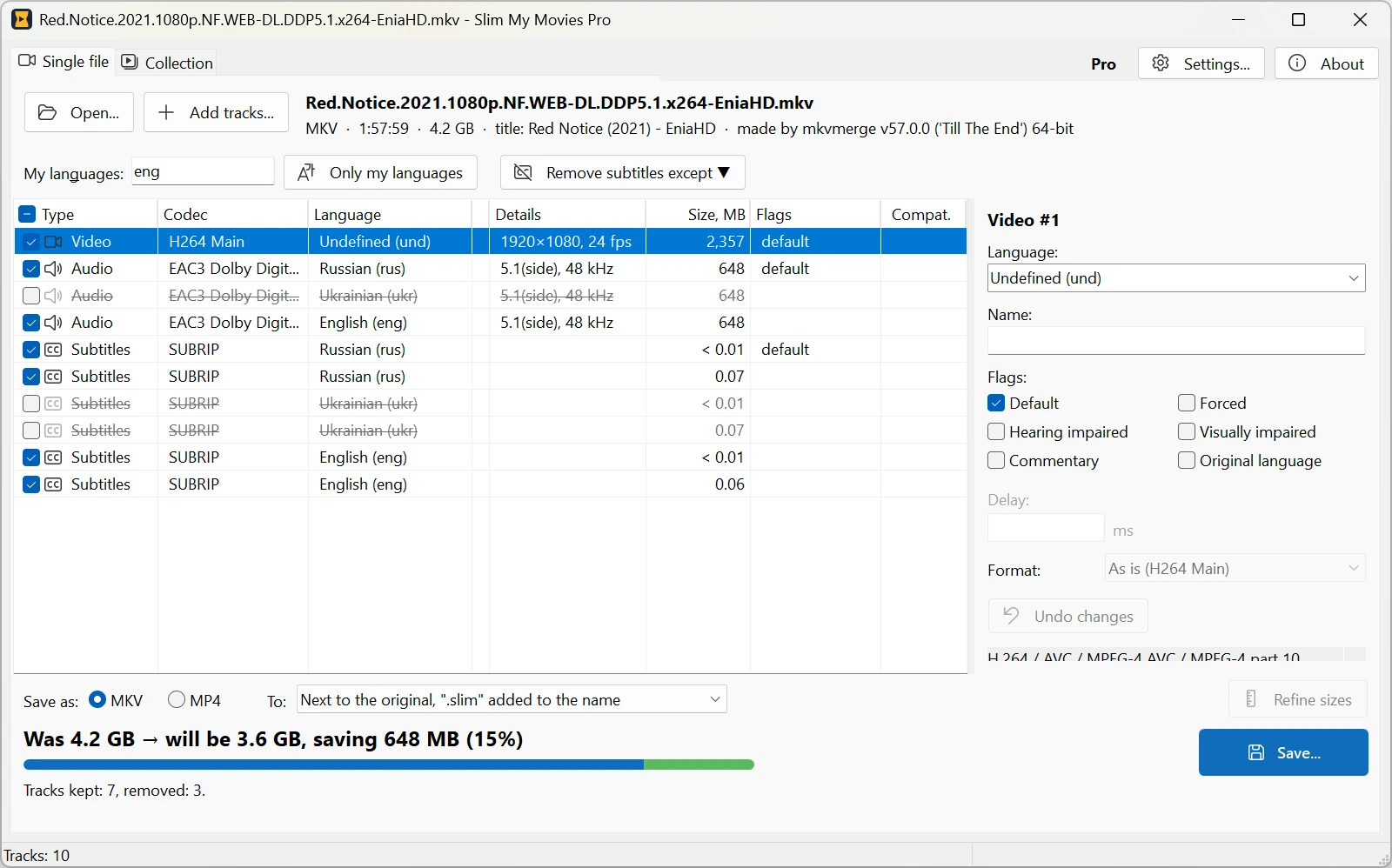
und (undetermined) has no language set; its name often tells.
When nothing tells, play the movie in a player and switch the tracks (in VLC: Audio → Audio Track):
their order is the same as in the list. While you are at it, tick the Default flag on the track
you keep, so every player starts the movie with it.
Way 2: MKVToolNix
MKVToolNix is the free, open-source toolkit the MKV world is built on. Its GUI does the same remux, with every setting Matroska has.
- Open MKVToolNix GUI. On the Multiplexer tab click Add source files and choose the movie.
- In the Tracks, chapters and tags list uncheck the audio tracks you don't want. The type, codec and language are shown for every track; sizes are not.
- Check the Destination file name at the bottom and click Start multiplexing.
Keep in mind that MKVToolNix always writes MKV (an MP4 is not an option), works on one file at a time unless you script it, and does not tell you how much space a track takes. For a single movie with unusual needs — chapter editing, tags, splitting — it is the right tool.
Way 3: mkvmerge from the command line
mkvmerge.exe comes with MKVToolNix and is handy for scripts. First list the tracks with their IDs:
mkvmerge -i "Movie.mkv"
Then keep only the audio tracks you name; everything else (video, subtitles, chapters, attachments) is copied as it is:
mkvmerge -o "Movie.new.mkv" --audio-tracks 1 "Movie.mkv"
Several tracks are separated by commas (--audio-tracks 1,3), and language codes work instead of IDs
(--audio-tracks eng,und). A ! in front reverses the list:
--audio-tracks !2 removes track 2 and keeps the rest. A whole folder in one go:
for %f in (*.mkv) do mkvmerge -o "out\%f" --audio-tracks eng,und "%f"
Track IDs differ from file to file, so for a folder filter by language, not by number, and keep und:
in many files the only audio track has no language set, and a rule without it would leave the movie silent.
Way 4: ffmpeg
If you already have ffmpeg, it remuxes too. The key is -c copy: without it ffmpeg re-encodes everything.
To remove the second audio track (streams are counted from zero):
ffmpeg -i "Movie.mkv" -map 0 -map -0:a:1 -c copy "Movie.new.mkv"
-map 0 takes every stream of the input, -map -0:a:1 drops audio stream number 1,
-c copy copies the rest without re-encoding. To keep only the first audio track:
ffmpeg -i "Movie.mkv" -map 0:v -map 0:a:0 -map 0:s? -map 0:t? -c copy "Movie.new.mkv"
Here 0:s? and 0:t? keep the subtitles and the attached fonts if there are any.
Check the result in a player: ffmpeg is strict about things like unusual subtitle codecs and may stop with an error
where a dedicated MKV tool just copies the stream.
Hundreds of movies at once
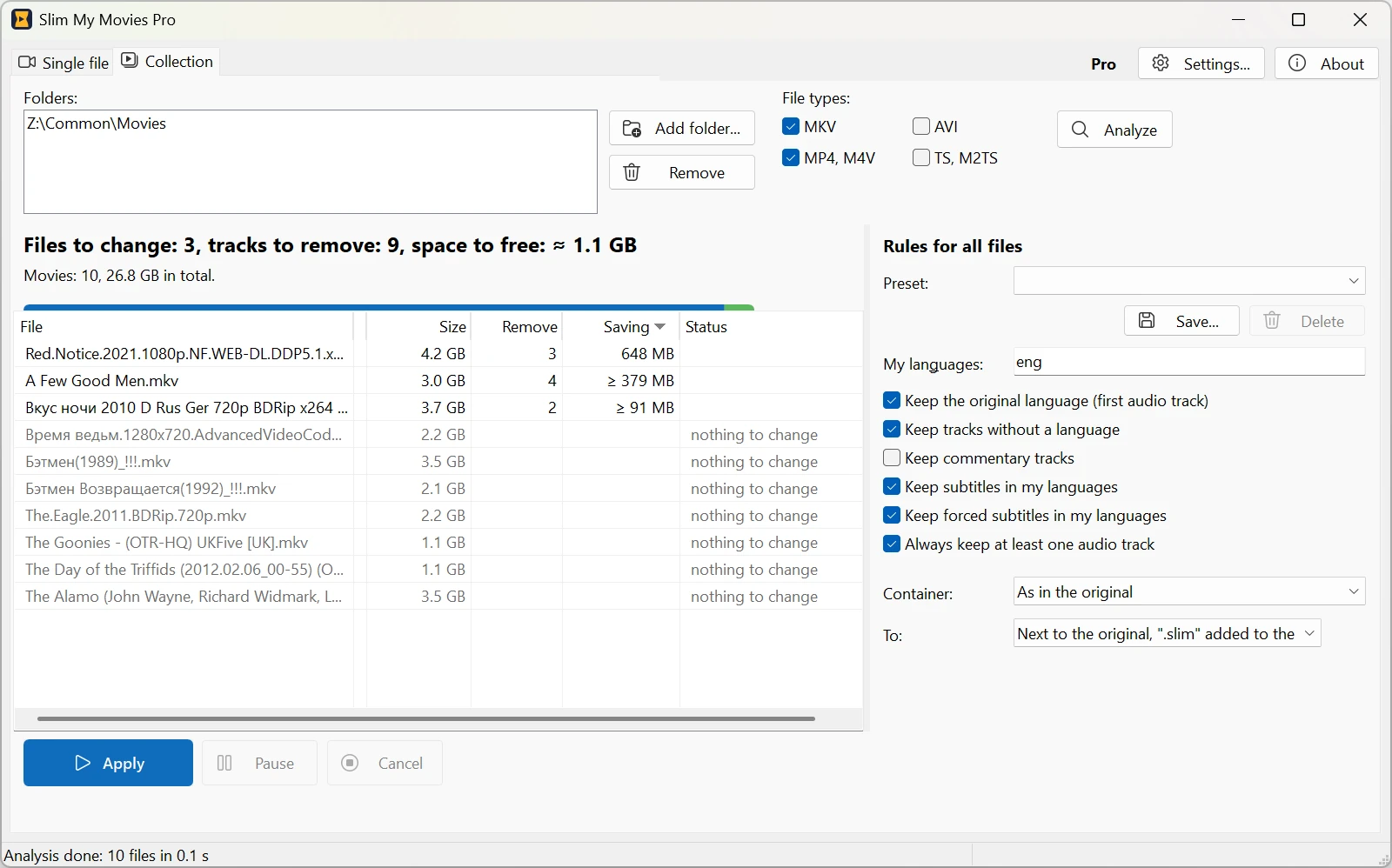
One file is easy in any of the four ways. A collection is where they differ. With scripts you filter by language and hope every file is tagged right; with MKVToolNix you queue the files one by one. Slim My Movies has a Collection tab for this: add a folder, click Analyze, and the program reads every movie and shows how much space the rules will free, file by file and in total. Set the languages once, decide what to do with commentaries, forced subtitles and tracks without a language, and click Apply. The analysis is free; the free version applies the rules to five files a day, Pro has no limit.
Check the result before deleting the original
Whatever way you took, play the new file and switch between its audio tracks. Compare the sizes: the new file should be smaller by about the size of the removed tracks, not by a few kilobytes and not by half. Only then delete the original. Slim My Movies does this check for you — it opens the result, compares the tracks with what you ordered and sends the original to the Recycle Bin rather than deleting it — but with a script, it is on you.
Questions
Will the picture quality change?
No. In all four ways the video stream is copied bit for bit. If a tool took more than a few minutes on a movie or loaded the processor to 100%, it was re-encoding, and that is the tool to avoid.
Why is the new file only a little smaller?
Because the track you removed was small. A stereo AAC dub of a two-hour movie is about 150 MB, while a lossless DTS-HD track is 3–5 GB. Slim My Movies shows the size of every track before you save, so there are no surprises.
Can I remove an audio track from MP4 the same way?
Yes. Slim My Movies and ffmpeg open MP4 (M4V) just like MKV; MKVToolNix reads MP4 but writes MKV. You can also save an MKV as MP4 without re-encoding the video, as long as the audio is in a format MP4 supports (AAC, AC3, E-AC3); DTS and TrueHD are converted and the program warns you first.
Can I replace the track with another one instead?
Yes. In Slim My Movies add an external file (AC3, DTS, AAC, FLAC, MKA) or take a track from another
copy of the movie, and shift it by a few milliseconds if it is out of sync. mkvmerge does the same with two input
files and --sync.
Does Plex or Jellyfin need to rescan the library?
Not if the file keeps its name and place: the server reads the tracks again when it next plays or refreshes the item. In Slim My Movies choose «Instead of the original» and the file stays where it was.
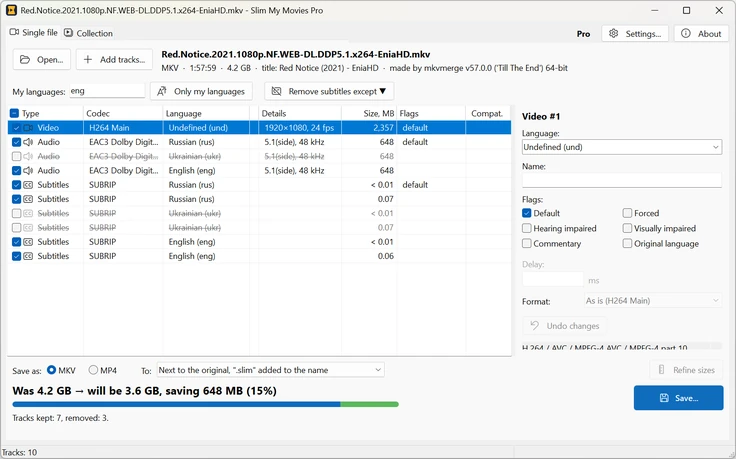
Slim My Movies 1.0 for Windows.
Related
- Slim My Movies
- How to use Slim My Movies
- Disks got expensive: free up space by removing unneeded audio tracks
- All My Movies