How to Use Slim My Movies

Slim My Movies makes movies smaller by removing the audio tracks and subtitles you don't need. The video is not re-encoded, so the picture stays exactly the same and saving takes about as long as copying the file.
The program has two tabs: Single file for one movie and Collection for a whole folder. Start with one movie: it takes a minute.
One movie in five steps
- Click Open... and choose a movie (MKV or MP4). Or simply drag the file into the program window.
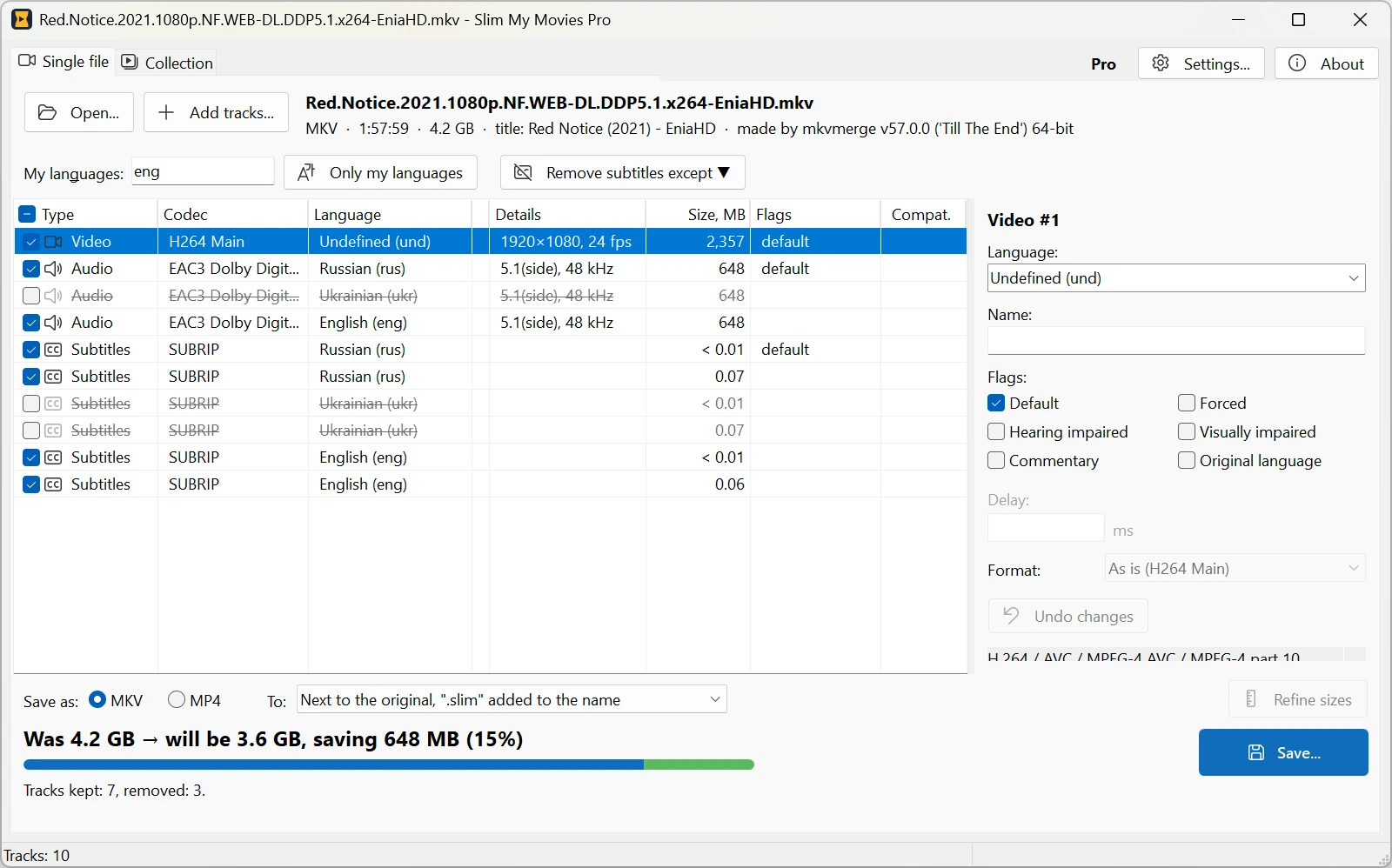
- Look at the list of tracks. For every track you see its language and its size in MB, so it is clear at once what takes the space. A checked track stays in the movie, an unchecked one is removed.
-
In the My languages box type the languages you watch in, for example
eng(oreng, spa), and click Only my languages. The program unchecks all other dubs and subtitles. You can also check and uncheck tracks by hand. - At the bottom you see the result before anything is written: «Was 4.2 GB → will be 3.6 GB, saving 648 MB».
-
Click Save.... In a few seconds or minutes a smaller copy of the movie
appears next to the original, with .slim in the name:
Movie.slim.mkv. Watch it, and if everything is fine, delete the original.
The whole collection in four steps
When one movie worked, clean up a whole folder or disk the same way.
- Open the Collection tab and click Add folder... (or drag a folder into the window). Subfolders are included.
- Click Analyze. The program reads all movies and shows how much space each of them will free, and the total at the top: «Files to change: 3, tracks to remove: 9, space to free: ≈ 1.1 GB». Nothing is changed yet, and the analysis is free.
- On the right, check the rules: your languages, whether to keep the original language of the movie, commentaries, subtitles. The total is recounted at once.
- Click Apply. The movies are saved one after another; Pause stops the queue after the current file. At the end you see how much space was freed.
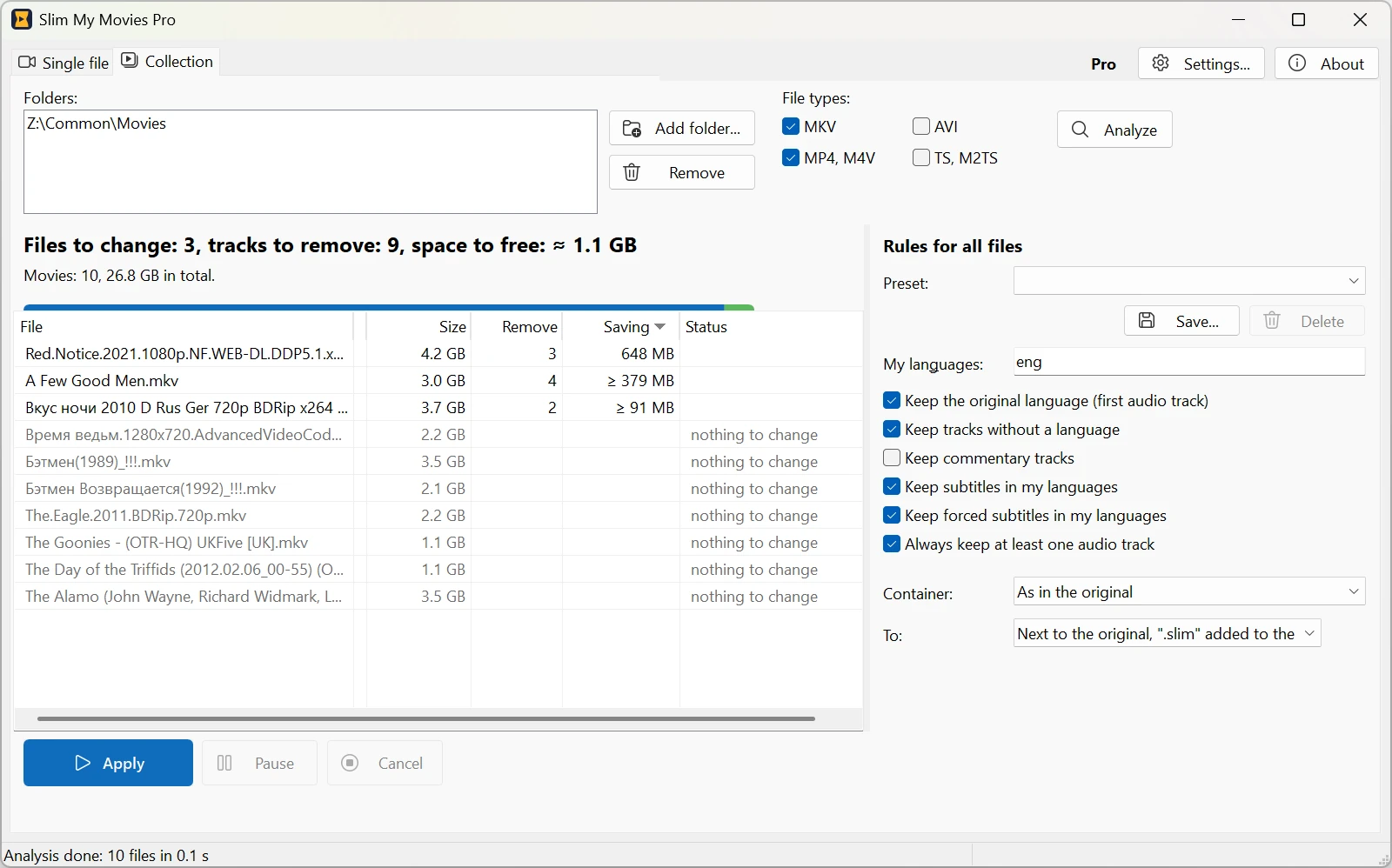
Want to fix one movie by hand? Double-click it in the table: it opens on the Single file tab, and the changes you make there are used when the collection is applied.
Language codes
Languages are written as three-letter codes, separated by commas. The most common ones:
| eng | English | ger | German |
| spa | Spanish | fre | French |
| ita | Italian | rus | Russian |
| por | Portuguese | jpn | Japanese |
You don't need to add the movie's original language: it is kept anyway (it is the first audio track).
A few more things it can do
- Fix a track. Click a track, and on the right change its language, name or flags. For example, mark the right dub as Default, and the player will pick it by itself.
- Add a track. Add tracks... adds a dub or subtitles from a file (.ac3, .dts, .srt, .ass, .sup...) or takes them from another copy of the same movie.
- Fix the sync. If the sound or subtitles are early or late, enter the shift in milliseconds in the Delay box.
- MKV or MP4. Choose the format in Save as. MKV keeps any tracks; if MP4 can't hold some of them, the program shows it with an icon in the list and asks before saving.
- Presets. In the collection, save the rules with Save..., say, one for foreign films and one for anime, and switch them in one click.
Free version and Pro
Everything with single movies and the collection analysis is free, with no time limit. In the collection the free version saves 5 movies a day and keeps one preset. Slim My Movies Pro removes these limits for a one-time $19.95. After the purchase click Activate... in the program and paste the code from the email.
Questions
Will the picture get worse?
No. The video is copied into the new file bit for bit, without re-encoding.
Which files does it work with?
MKV and MP4 (M4V). Windows 10 and 11, 64-bit.
I removed a track by mistake. What now?
Nothing is lost: the original is still next to the new file, or in the Recycle Bin if you chose to replace it.
Open it again and save it with the right tracks.
The program is in the wrong language.
Click Settings... and choose the interface language: English, Russian, German, French or Spanish.
Slim My Movies 1.0 for Windows.