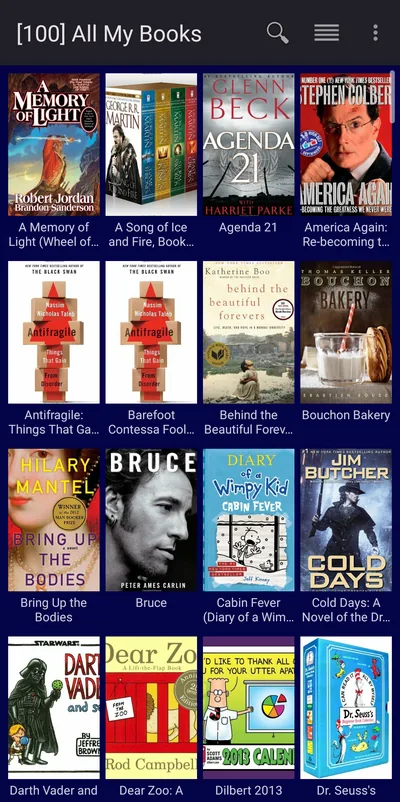
Sending your collection to the phone over Wi-Fi
You have scanned the code with the ordinary camera.
Open All My Books on this phone, tap From computer over Wi-Fi and scan the same code from inside the app.
No All My Books on this phone yet? Download the app (APK), install it and come back to the code on the computer screen.
The fastest way to get your book collection onto an Android phone: the phone takes it straight from your computer over your home Wi-Fi. There is no size limit, no e-mail or password is needed, and nothing is uploaded to the Internet. Next time only new and changed books are sent.
What you need
- All My Books for Windows, version 6.4 or newer (check it with "Help - About").
- All My Books for Android, version 2.0 or newer: download the APK.
- The phone and the computer connected to the same network: the same home router. The computer may be connected to that router by cable.
On the computer
- Start All My Books and press Ctrl+M (or use the menu "Tools - Export to... - Export to mobile device...").
- Choose over Wi-Fi, straight to the phone (scan a QR code) and click Next.
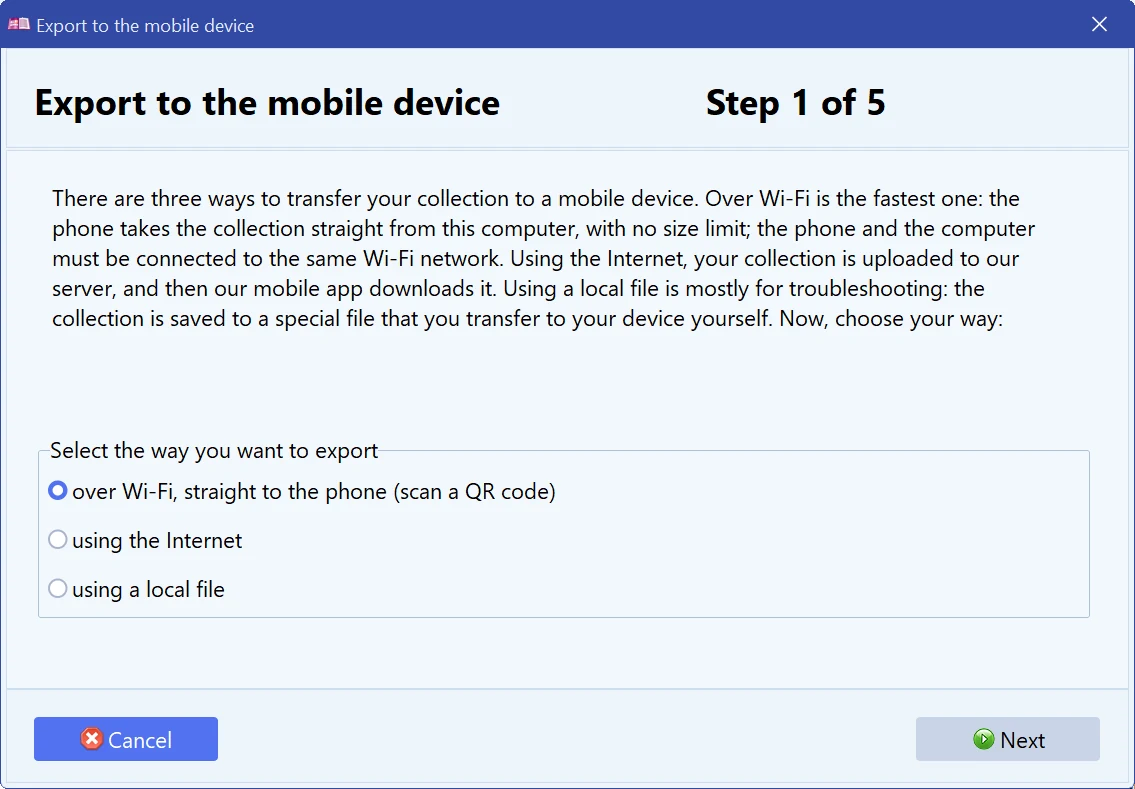
- Choose Phone or Tablet (a tablet gets bigger covers) and click Start.
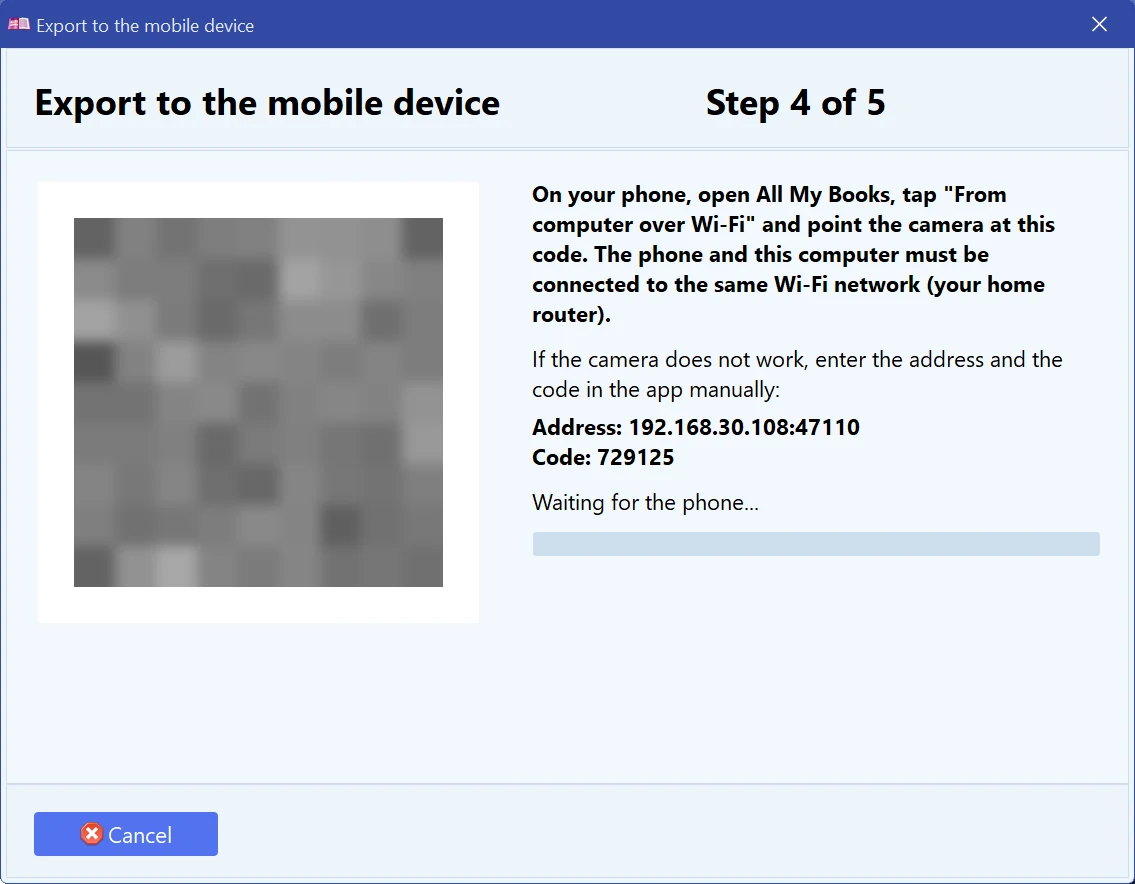
A QR code appears. Keep this window open until the transfer is over.
On the phone
- Open All My Books and tap From computer over Wi-Fi on the first screen, or choose Update from computer over Wi-Fi in the menu.
- Tap Scan the code and point the camera at the code on the computer screen. The first time, the app asks for the camera: allow it, the camera is used only to read the code.
- Wait. The computer prepares the collection (a big one takes a few minutes), then the phone downloads it and adds the books. When everything is ready, the computer says Done!
Next time
The phone tells the computer what it already has, so only new and changed books are sent, and the books you deleted on the computer disappear from the phone too. To get the whole collection again, tick Get the whole collection again, not only the changes on the phone before scanning.
The camera does not work
Tap Enter address and code manually in the app and type the address and the 6-digit code shown under the QR code on the computer screen.
The phone cannot connect
- Check that the phone is on Wi-Fi and that both devices are on the same network. Guest Wi-Fi networks and some routers ("client isolation", "AP isolation") do not let devices see each other: connect both to the main home network.
- Turn off VPN on the phone and on the computer for the time of the transfer.
- If Windows asked whether to allow All My Books access to the network, allow it. An antivirus with its own firewall may block the connection as well: allow All My Books in its settings (incoming TCP connections, ports 47110-47119, local network only).
- The code works only while the transfer window is open on the computer. If you closed it, start the transfer again and scan the new code.
- If nothing helps, send the collection over the Internet or as a file.
Is it safe?
The collection goes straight from your computer to your phone inside your home network and does not pass through our servers. The code on the screen is for one transfer only: it stops working as soon as the transfer is over or the window is closed.